

Introduction
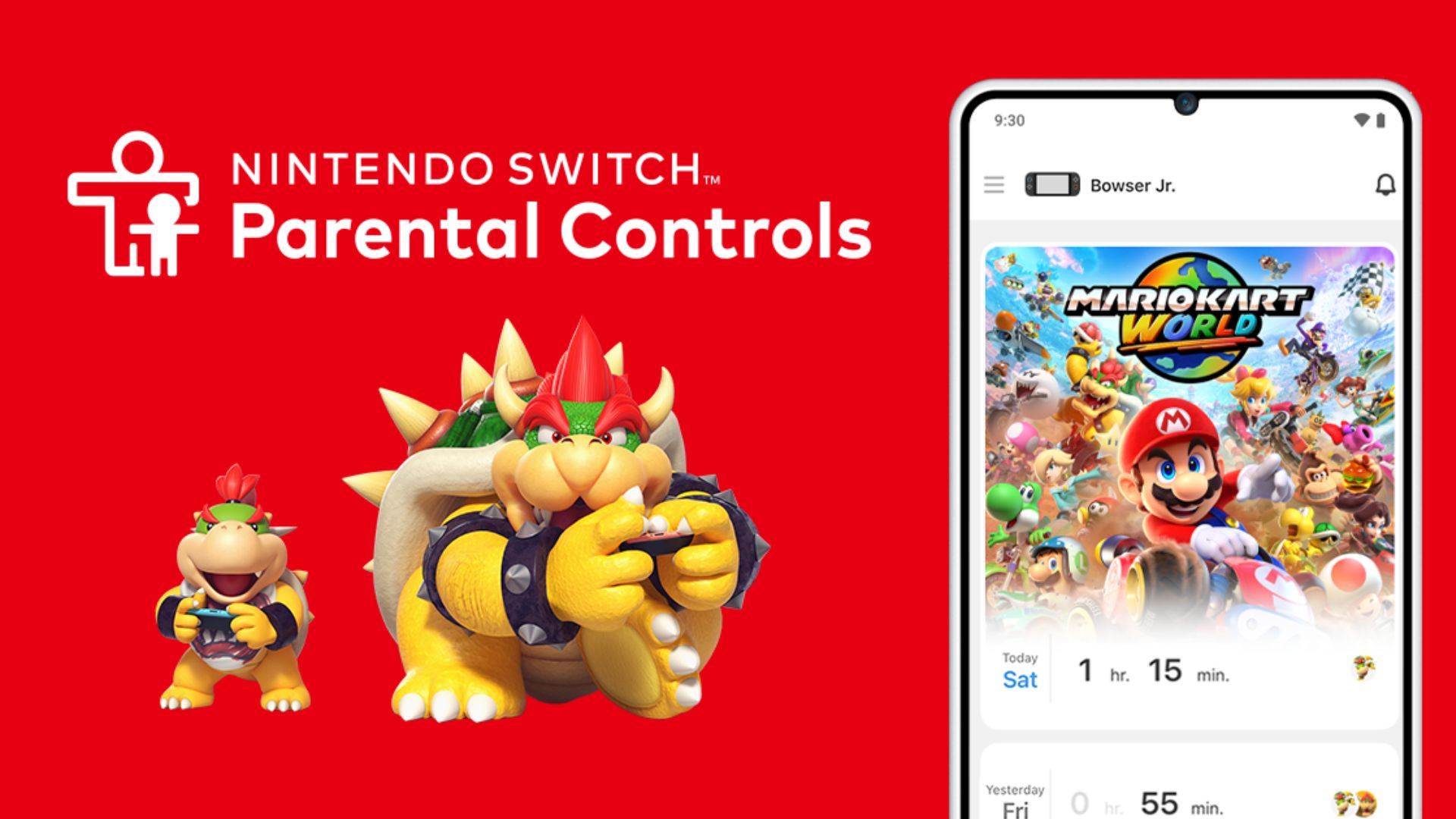
The Nintendo Switch, first released on March 3, 2017, does not include a native system-wide passcode lock the way many phones and tablets do. Nintendo provides a dedicated Parental Controls system and a companion mobile app (available for iOS and Android) that ties into a Nintendo Account and lets owners set play-time limits and other restrictions. A recent Reddit post outlines a practical way to use those official parental controls as a makeshift passcode to block general access to most areas of the console.
What the Reddit post says, in plain language
A Reddit user named "superwiifan" posted a method that uses Nintendo's Parental Controls app to require a four-digit PIN before the console can be used beyond a very limited state. In journalistic terms: the technique configures play-time limits and the app's "Suspend Software" option so the console asks for the Parental Controls PIN before resuming software or accessing most menus.
Verified limitations and platform facts
- The Parental Controls mobile app is available on the Apple App Store and Google Play and links to your Nintendo Account.
- The Nintendo eShop is the system's digital storefront, and System Settings and the HOME Menu remain core parts of the Switch interface.
- Using this method does not create an official lock screen; some elements, such as the Switch HOME screen's recently played titles (typically up to four) can remain visible. For example, a game like Shinobi Refle: Senran Kagura could still appear among recently played entries.
- The workaround leverages existing, supported features in the Parental Controls system rather than modifying console firmware.
Step-by-step (based on the published method)
1) Install the Nintendo Switch Parental Controls app on your iOS or Android device and sign in with your Nintendo Account.
2) In the app, create a four-digit Parental Controls PIN and make sure you remember it.
3) Under Play-Time Limit, enable "Set Days Individually" and set each day's limit to 0 minutes. Then enable the "Suspend Software" option and save the changes.
4) On the Switch, connect to the internet, open System Settings > Parental Controls, and sync with the app.
Conclusion
This approach repurposes Nintendo's official Parental Controls to add a practical layer of access control on a Nintendo Switch without third-party tools. It relies on verified, supported features: the Parental Controls app, the console's System Settings, and the Play-Time/Suspend Software options. Users should be aware of the method's limitations—recently played games may still be visible and full parental-limit functionality differs from a built-in system-wide passcode.
How to Add a Passcode to Nintendo Switch Using Parental Controls
Nintendo News Hub
Game Pages Mentioned In This Article
Use these Nintendo Switch game pages to keep exploring the titles connected to this story, including related genres, developers, screenshots, and more coverage.
Related Topics
Explore more articles about these topics:
Source: NintendoSoup